Purpose.
The purpose of this how to is to provide some basic installation instructions to create a FreeBSD V15.1 system running xorg and a basic plasma configuration.
Create the Virtual disk.
qemu-img create -f qcow2 FreeBSD.img 20GInitiate the VM.
qemu-system-x86_64 -machine q35 -accel kvm -cpu host -m 4096 -smp 2 -vga virtio --full-screen -nic bridge,br=virbr0,model=virtio-net-pci -device intel-hda -device hda-duplex -bios /usr/share/ovmf/x64/OVMF.fd --hda ~/FreeBSD.img --cdrom ~/Downloads/FreeBSD-15.1-RELEASE-amd64-disc1.isoStart the installer.
I won’t go into the process for running the installer. Although it is a TUI, I find it quite intuitive to use. Just accept the defaults for now. Once the installer has finished perform a reboot ready for the first part of the configuration.
Basic System Configuration.
One the VM has rebooted and the FreeBSD login screen has been presented, login as the root user and run the following commands.
pkg
pkg install nano
pkg install xorg
freebsb-update fetch
freebsd-update install
reboot
The first command bootstraps the pkg installer and the following lines install the nano text editor and the xorg meta package. The last few commands do a binary update on the base system using the freebsd-update tool to fetch and install the updates. At the time of this post, there were over 500 updates and the system was patched to -p6. Finally reboot the VM to ensure the updates are all applied and your system is running all current versions. You will be back at the login screen. We will now move on to do some basic xorg configuration and install the required plasma desktop packages.
Create the basic xorg.conf files.
nano /usr/local/share/X11/xorg.conf.d/10-driver.confAnd add the following lines:
Section "Device"
Identifier "Card0"
Driver "scfb"
EndSectionnano /usr/local/share/X11/xorg.conf.d/30-keyboard.confAnd add the following lines:
Section "InputClass"
  Identifier "system-keyboard"
  MatchIsKeyboard "on"
  Option "XkbLayout" "gb,es"
  Option "XkbOptions" "grp:alt_shift_toggle"
EndSection
This will give the minimal config to test your xorg installation on FreeBSD V15.1. Now run the following command to ensure you get a GUI and test the keyboard layout to ensure it is correct.
startx /usr/local/bin/xtermYou should be rewarded with an xterm in the top right hand of the screen and then try entering your special keyboard characters to ensure they are being mapped correctly. Here’s a screen snip of mine. Apologies the size is rather small, just zoom in and you’ll see the characters. To exit xterm type exit press ctrl and d key at the same time. the x session will terminate and you’ll be back at the TUI.
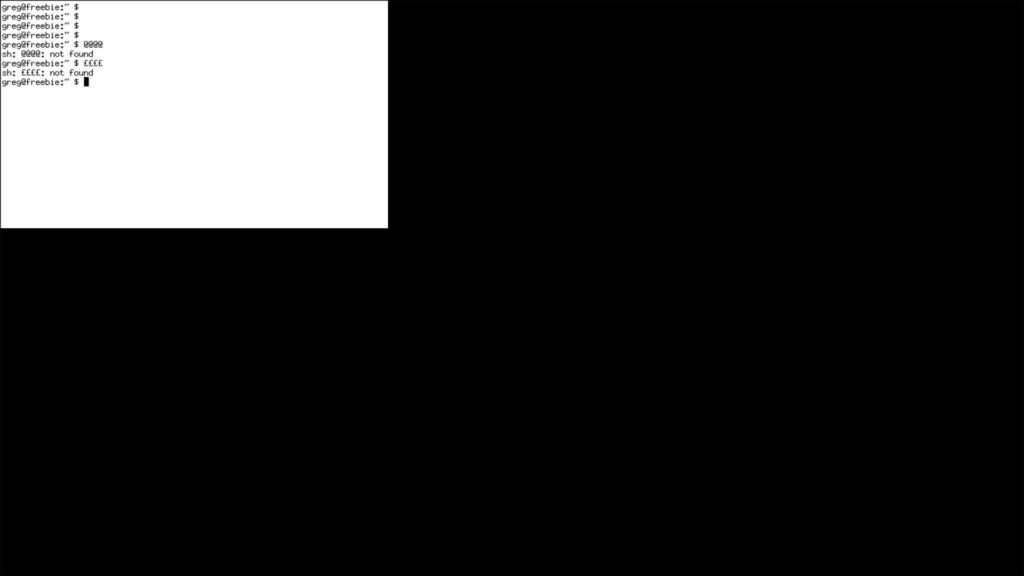
Congratulations, you now have a basic working FreeBSD system with a GUI.
Installing plasma packages and a login manager.
We now move to the final steps in getting a working plasma installation running on your FreeBSD VM. Run the following commands to install plasma6-plasma and the sddm login manager.
pkg install plasma6-plasma sddmThis will install over 500 packages so I recommend you have another brew or do a minor house hold task to move those legs!
Once this has completed (hopefully successfully) there are a couple of system daemons to enable to ensure plasma will run correctly and that the sddm GUI login manager will be available as default.
sysrc dbus_enable=YES
sysrc sddm_enable=YES
The above commands enable the dbus process which is used heavily by plasma to shift messages between running components and the last command enables the sddm gui login manager. Once done reboot and you’ll be presented with the sddm login manager.
Plasma joy!
Login with your user name and password and within a minute you will see a lovely shiny new plasma desktop ready for you!
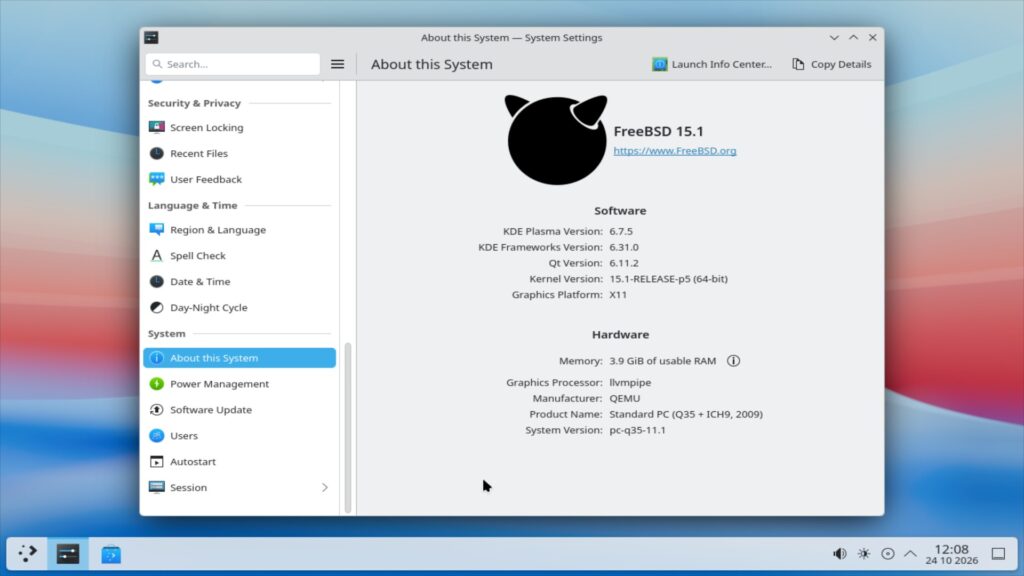
Happy computing.
We’re done for today. I hope this guide has been of some use to you.
Where next?
This was a quick run through a basic plasma installation. you might need some kde applications such as konsole, dolphin to make best use, just install them with the pkg command you are now used to.
For me, I am going to get some real bare metal to install this on a proper machine
Thanks for reading!