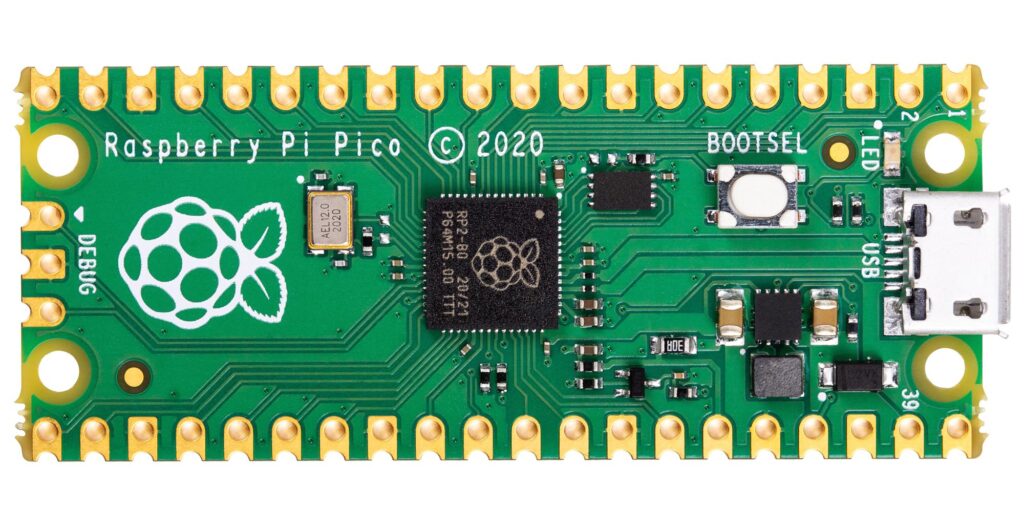
I’ve had my Pico for over a year now and the first thing you have to do is to install the firmware. Checking the Pico website, I noticed a newer version was available so I wanted to install it.
To check your current version run the following python from thonny
import os
print(os.uname())
On my board this returned the following.
Or, this command.
import sys
sys.implementation
Power-up your Pico holding the bootsel button and in your file manager you’ll see it as a removable device. Drag and drop the file onto the folder with the INDEX.HTML file and INFO_U2.TXT if you’ve got a valid file the device will automatically reboot and the drive will disappear. You Pico will be running the main.py file if you;ve set one.
That’s all chaps!
A retired chartered engineer with too much time on his hands
The purpose of this how to is to provide some basic installation instructions to create a FreeBSD V15.1 system running xorg and a basic plasma configuration.
I won’t go into the process for running the installer. Although it is a TUI, I find it quite intuitive to use. Just accept the defaults for now. Once the installer has finished perform a reboot ready for the first part of the configuration.
Basic System Configuration.
One the VM has rebooted and the FreeBSD login screen has been presented, login as the root user and run the following commands.
The first command bootstraps the pkg installer and the following lines install the nano text editor and the xorg meta package. The last few commands do a binary update on the base system using the freebsd-update tool to fetch and install the updates. At the time of this post, there were over 500 updates and the system was patched to -p6. Finally reboot the VM to ensure the updates are all applied and your system is running all current versions. You will be back at the login screen. We will now move on to do some basic xorg configuration and install the required plasma desktop packages.
This will give the minimal config to test your xorg installation on FreeBSD V15.1. Now run the following command to ensure you get a GUI and test the keyboard layout to ensure it is correct.
startx /usr/local/bin/xterm
You should be rewarded with an xterm in the top right hand of the screen and then try entering your special keyboard characters to ensure they are being mapped correctly. Here’s a screen snip of mine. Apologies the size is rather small, just zoom in and you’ll see the characters. To exit xterm type exit press ctrl and d key at the same time. the x session will terminate and you’ll be back at the TUI.
Congratulations, you now have a basic working FreeBSD system with a GUI.
Installing plasma packages and a login manager.
We now move to the final steps in getting a working plasma installation running on your FreeBSD VM. Run the following commands to install plasma6-plasma and the sddm login manager.
pkg install plasma6-plasma sddm
This will install over 500 packages so I recommend you have another brew or do a minor house hold task to move those legs!
Once this has completed (hopefully successfully) there are a couple of system daemons to enable to ensure plasma will run correctly and that the sddm GUI login manager will be available as default.
sysrc dbus_enable=YES
sysrc sddm_enable=YES
The above commands enable the dbus process which is used heavily by plasma to shift messages between running components and the last command enables the sddm gui login manager. Once done reboot and you’ll be presented with the sddm login manager.
Plasma joy!
Login with your user name and password and within a minute you will see a lovely shiny new plasma desktop ready for you!
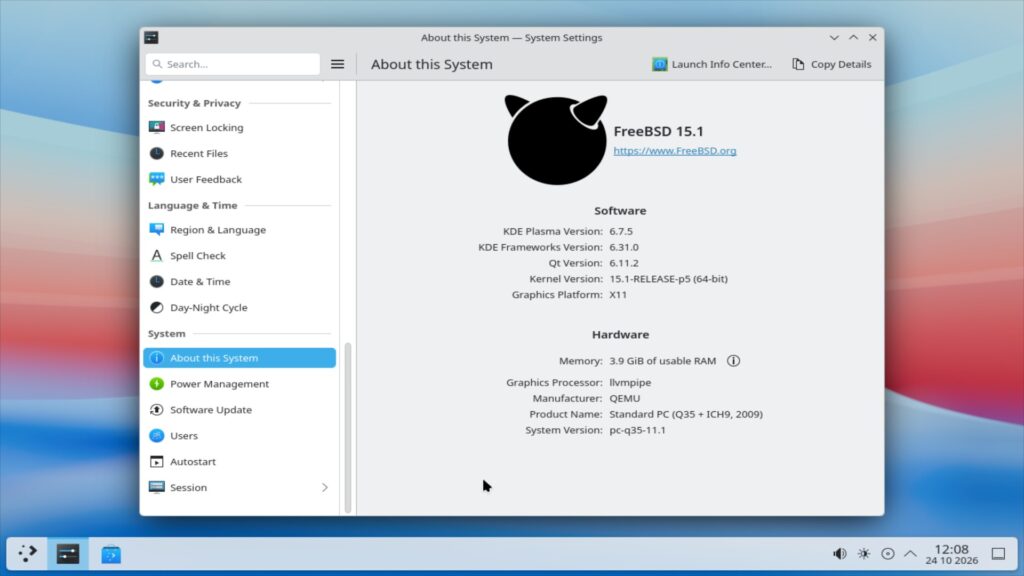
systemsettings on FreeBSD 15.1 running plasma version 6.7.5
Happy computing.
We’re done for today. I hope this guide has been of some use to you.
Where next?
This was a quick run through a basic plasma installation. you might need some kde applications such as konsole, dolphin to make best use, just install them with the pkg command you are now used to.
For me, I am going to get some real bare metal to install this on a proper machine
I’ve recently started to look at the *BSDs again. i have a love/hate repationship with FreeBSD which is now on a much more love basis as in the past a dirty shutdown would more often than not would lead to an fsck which screwed the whole system up. I’m not certain but I think they use a different filesystem now and it tends to be much more reliable even when it crashes in a desktop environment. Anyway, I wander as this is about OpenBSD but this issue will come back later!
So, first thing to do is to create a qcow2 filesystem
I am not going to walk you through the installer, it is pretty intuitive for a TUI. The only change I made was to do a custom disk layout by selecting a GPT disk and then adding a root (/) partition first then a swap partition for the remainder of the disk. If you accept the defaults, you will run out of space installing kde-plasma and other applications.
OK, with that done you now want to add a few applications. Login as root and use the pkg_add command to install a few favorites for me this is nano and a basic plasma install.
pkg_add nano kde-plasmsa
This will take a few minutes so go and make a brew! Once complete enable the messagebus daemon and reboot
rcctl enable messagebus
reboot
Login back in as root and make a couple of configuration changes.
usermod -L kde myuser
Replace myuser with your regular user account.
Now, without a complete debrief which will bore the hell out of you (background here) plasma will not start correctly. loads of locale errors, file handler errors, plasmashell core dumps, black screen and general plasma hell will prevent your session from running. I did ask for help on the fediverse and a few people did give some good pointers which are incorporated in my post, especially this one as it verified the behaviour I was seeing and that’s normally a good thing as I wasn’t going mad! but it did not resolve the problem. Details at the end of this post or you’ll never forgive me for wandering again.
Now that your user is in the KDE login class, I still found the limits a bit on the low side so I increased the limits as shown below.
This should now give you sufficient file handles to run plasma. now on to the .xinitrc file.
The following .xinitc file was put together using the pkg-install readmes for DBUS and kde-plasma in the /usr/local/share/doc/pkg-readme directory
.xinitrc
export LC_CTYPE=en_GB.UTF-8
export XDG_RUNTIME_DIR=/tmp/run/$(id -u)
if [ ! -d $XDG_RUNTIME_DIR ]; then
    mkdir -m 700 -p $XDG_RUNTIME_DIR
fi

if [ -x /usr/local/bin/dbus-launch -a -z "${DBUS_SESSION_BUS_ADDRESS}" ]; then
    eval `dbus-launch --sh-syntax --exit-with-session`
fi
kscreen-doctor output.556.enable
/usr/local/bin/ck-launch-session /usr/local/bin/startplasma-x11 > plasmalog.txt 2>&1
without the kscreen-doctor line this is the cause of all the nightmares I had over 2 days working on this problem. The core reason the standard script doesn’t work is that for whatever reason plasma doesn’t enable the default output device (all those no screens found errors etc) The number varies by OpenSBD version, root V normal user, if vgaaperture setting is enabled in sysctl.conf. To find your magic number just startx without the .xinitrc file and you’ll default to TWM and run the following command
kscreen-doctor -o
and make a note for the .xinitrc file. Now you’re ready!
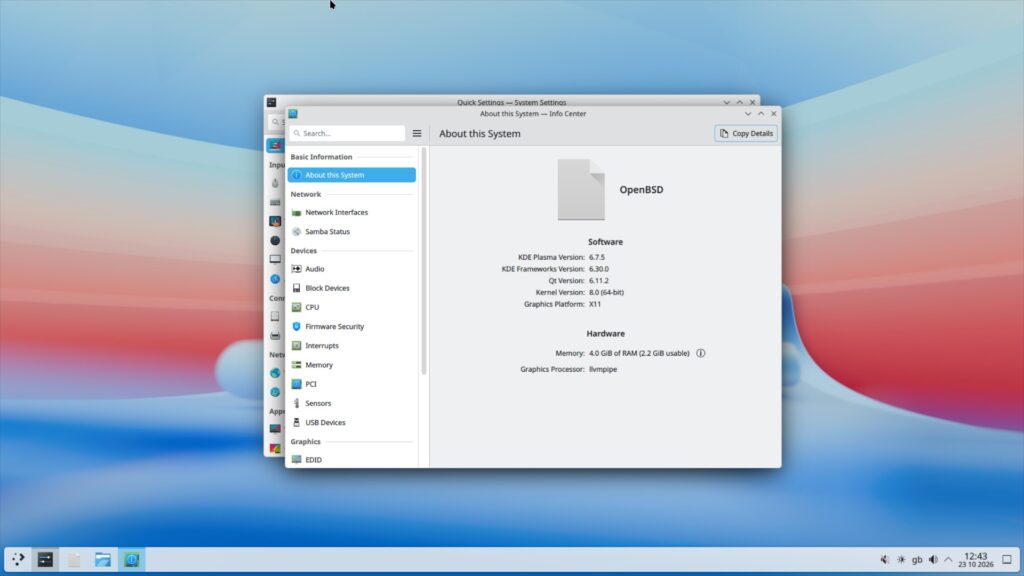
type startx and enjoy some wonderful plasam on OpenBSD on qemu!
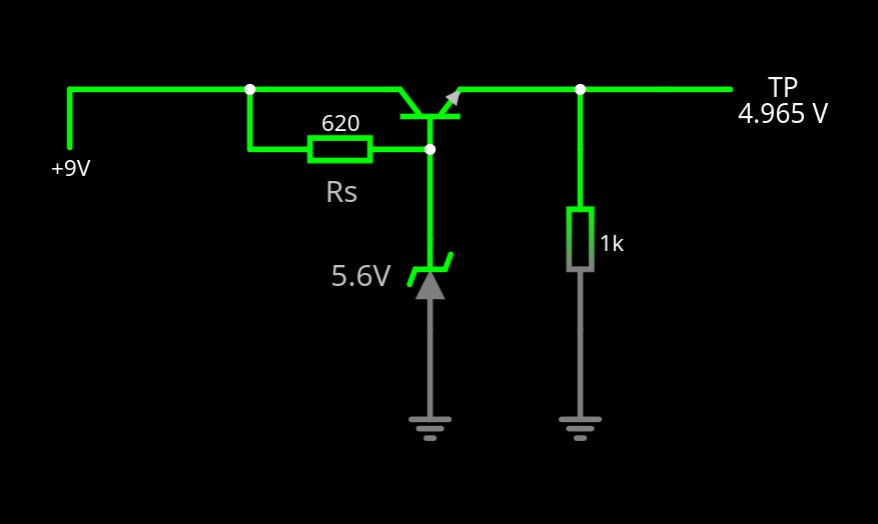
A Simple 5 Volt regulator using an NPN Transistor and a Zener Diode. Circuit drawn in Falstad Circuit Simulator
It doesn’t get much simpler that this, well, it does actually if you don’t use a transistor but you won’t get much current delivery.
The key to the circuit is in knowing a number of variables:
What do you want the load current to be?
What do you want the output voltage to be?
What is the likely input voltage going to be?
What’s the gain (hfe) of the NPN transistor?
How it works.
A Zener diode is used as a voltage reference, in this circuit the voltage is 5.6V. This voltage is supplied to the base of the transistor and the forward volt drop of the base-emitter junction reduces the output at the emitter to (Vz-Vbe) 5.6-0.6=5V.
The input voltage can vary and using Kirchoff’s law there will be a voltage drop across the sense resistor of Vin-Vz and and a current flow. The resistor also provides the bias current for the transistor to ensure it turns on. So, there are two currents to consider in the base circuit.
Iz. The Zener needs somewhere between 5 and 10mA to maintain the 5.6V reference voltage at the base.
Ib. This is related to the gain of the transistor and the output current. The base current can be calculated as Ic/hfe. We know hfe and we know the design current from the requirements.
ib<< iz.
Calculating Rs.
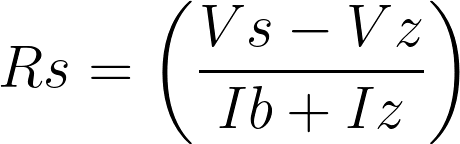
The sense resistor can now be calculated using a simple Ohm’s law calculation:
For our simple use case, these are the core requirements.
ILoad=30mA
Vs=9V
Vout=5V
hfe=100
Iz=5mA
As this isn’t a preferred value, chose a lower value to ensure sufficient bias is applied to the transistor : 620Ω
My next project is to look at moving away from building using breadboards and then veroboards to use an etched PCB. Back in the 1980s I once did this with ferric oxide (nasty stuff) copper plated PCB and an indelible marker to route the PCB tracks and etch it with the ferric oxide solution. The output was, well dreadful! so this was expunged from my memory!
I don’t have those boards and if I recall correctly it was for a dark sensor using some resistors, an LDR and a transistor. I do recall the LDR was an enormous ORP12 and the transistor a fairly heavy duty BFY51 which can pull an Amp through its collector! I suspect there would have been less than 20mA flowing through it…
So, it is now 2024 and I did start playing around with Kicad during lockdown in 2021 first getting used to the schematic editor to draw my old circuits in a modern application. Quite a few lessons were learnt, notably.
It is not important to wire everything to everything which needs to be connected as you’d typically see in a traditional circuit diagram
The more complex the circuit gets, point 1 above becomes even more true.
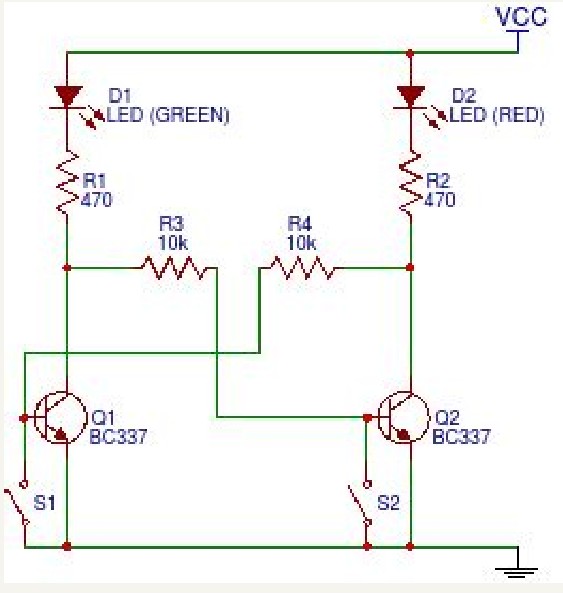
Bloody horrible isn’t it!! This is a simple SR Flip-Flop
I finally got round to writing my own ‘Hello World!’ for an LCD connected to an Arduino Nano. So what! I hear you all cry. Well, I wanted to do it without the Arduino LCD library. Why? Well, it’s a challenge isn’t it!
First off, the following PDFs are invaluable in understanding the controller on the majority of the LCD on the market utilising the ubiquitous Hitachi HD44780 controller.
#define LCD_ENABLE (0x00 << 2)
#define LCD_CLEAR (0x01 << 2)
#define LCD_HOME (0x02 << 2)
#define LCD_DISP_ON_UNDERLINE_BLINK (0x0f <>2)
#define LCD_8BITMODE (0x30 >>2)
#define LCD_RESET 0x38

#define LCD_RS_COMMAND_MODE 0x00
#define LCD_RS_DATA_MODE 0x01

int RS=A0;
int RW=A1;
int ENABLE=A2;

void setup()
{
delay(100); // power on delay
DDRD=B11111100; // set bits on D2-D7 as outputs
PORTD=0;

pinMode (ENABLE,OUTPUT);
pinMode (RW,OUTPUT);
pinMode (RS,OUTPUT);
digitalWrite (RW,LOW);

}
wire D2 to LCD D4 wire D3 to LCD D5 wire D4 to LCD D6 wire D5 to LCD D7 wire A2 to LCD Enable pin wire A1 to LCD R/W pin wire A0 to LCD RS pin
The basic sequence of operation is as follows: Once the LCD had powered on the init sequence should be:
set the read/write line permanently low to write as we won’t be reading from the display – or tie to 0V
set command mode (RS pin) (logic 0)
set 8 bit mode X 3
set the data lines;
pulse the enable line (high to low transition and back to low again
#define LCD_ENABLE (0x00 << 2)
#define LCD_CLEAR  (0x01 << 2)
#define LCD_HOME   (0x02 << 2)
#define LCD_DISP_ON_UNDERLINE_BLINK (0x0f <>2)
#define LCD_8BITMODE (0x30 >>2)
#define LCD_RESET 0x38
#define LCD_RS_COMMAND_MODE 0x00
#define LCD_RS_DATA_MODE 0x01
int RS=A0;
int RW=A1;
int ENABLE=A2;
void setup()
{
 delay(100); // power on delay
 DDRD=B11111100; // set bits on D2-D7 as outputs
 PORTD=0;
 pinMode (ENABLE,OUTPUT);
 pinMode (RW,OUTPUT);
 pinMode (RS,OUTPUT);
 digitalWrite (RW,LOW);
}

wire D2 to LCD D4
wire D3 to LCD D5
wire D4 to LCD D6
wire D5 to LCD D7
wire A2 to LCD Enable pin
wire A1 to LCD R/W pin
wire A0 to LCD RS pin
The basic sequence of operation is as follows:
Once the LCD had powered on the init sequence should be:
set the read/write line permanently low to write as we won't be reading from the display - or tie to 0V
set command mode (RS pin) (logic 0)
set 8 bit mode X 3
set the data lines;
pulse the enable line (high to low transition and back to low again

void hd44780_init() // it's recommended that the 8-bit mode be sent 3 times to ensure full initialisation of the LCD controller
{
  for (int poweron=0; poweron<3; poweron++)
   {
    digitalWrite(RS,LCD_RS_COMMAND_MODE); // switch LCD into COMMAND_MODE
    PORTD=LCD_8BITMODE;
    pulse();
    }
}
void init_4bitmode()
{
  delay(5);
  digitalWrite(RS,LCD_RS_COMMAND_MODE);
  PORTD=LCD_4BITMODE;
  delay(5);
  pulse();
}
void lcd_clear()
{
  digitalWrite(RS,LCD_RS_COMMAND_MODE);
  PORTD=(0 <<2);
  pulse();
  PORTD=(1 <<2);
  pulse();
  delay(200);
}
void lcd_2linemode()
{
  digitalWrite(RS,LCD_RS_COMMAND_MODE);
  PORTD=(2 <<2);
  pulse();
  PORTD=(8 <<2);
  pulse();
}
void lcd_displayon() // also cursor underline and blink
{
  digitalWrite(RS,LCD_RS_COMMAND_MODE);
  PORTD=(0 <<2);
  pulse();
  PORTD=(0xf <<2);
  pulse();
}
void pulse()
{
  digitalWrite(ENABLE,HIGH);
  delayMicroseconds(40);
  digitalWrite(ENABLE,LOW);
  delayMicroseconds(40);
}
void lcd_print_char(char *nextchar)
{
digitalWrite(RS,LCD_RS_DATA_MODE);
  while (*nextchar !='\0')
   {
    char lower=(*nextchar & 0x0f);
    char upper=(*nextchar >> 4) &0x0f;
    char shiftup=(upper << 2);
    char shiftlow=(lower << 2);
    PORTD=shiftup;
    delay(5);
    pulse();
    PORTD=shiftlow;
    delay(5);
    pulse();
    nextchar++;
   }
}
void loop()
{
hd44780_init();  // post power-on-reset send 8 bit mode three times to ensure reset
init_4bitmode(); // now switch to 4-bit mode
lcd_clear();     // clear the display and set cursor position to home
lcd_2linemode(); // set two line mode for the 2X16 HD44780 DEM controller
lcd_displayon(); // finally, turn the LCD's display on so we can see this!!!!
lcd_print_char("Hello World!");
while (1==1)
 {
 }
}
The nRF24L01+ is a great little device to allow RF data exchange between two or more arduino devices. They are very inexpensive and you can purchase 4 units from ebay for under £5. There isn’t a library for the module within the core ardino libraries and the best library I found is written by a guy called manicbug and you can find information on how to download and install the library on his website . The rest of this post implies you’ve installed the library to your ardunio’s library directory.
I learnt a lot thanks to manicbug’s blog and various other posts which I will note at the end of this post if you want further background reading.
Regrettably, I could not get any of the examples working correctly despite checking and rechecking the connections, configuration. As the code was a little hard to understand ( I hate classes,pointers and anything OOP) I found I could not penetrate the code successfully. This is a limitation on my part and isn’t a slight against the library’s author.
So, I went on a search on the arduino forum and towards the end of the discussion there are mentions of powering up and down the radio device to ensure successful transmission. I then implemented the example provided on shanes.net with the mods provided by mlc and the packet exchange was then flawless. My modified code is shown below – This is the transmitter.
#include <SPI.h>;
#include <nRF24L01.h>;
#include <RF24.h>;
#include <RF24_config.h>;
/*
This sketch sends a string to a corresponding Arduino
with nrf24 attached. It appends a specific value
(2 in this case) to the end to signify the end of the
message.
*/
int success,fail;
char msg[1];
int i=77; // Lowercase 'a'
RF24 radio(9,10);
const uint64_t pipe = 0xE8E8F0F0E1LL;
void setup(void)
{
Serial.begin(9600);
radio.begin();
radio.openWritingPipe(pipe);
}
void loop(void){
radio.powerUp();
delay(1);
// int messageSize = theMessage.length();
// for (int i = 0; i < messageSize; i++) {
// int charToSend[1];
// charToSend[0] = theMessage.charAt(i);
// radio.write(charToSend,1);
// }
//send the 'terminate string' value...
msg[0] = 'H';
bool h=radio.write(msg,1);
if (h==false)
{
Serial.println("Failed to tx HIGH ");
fail++;
Serial.print("failed to send ");
Serial.print(fail);
Serial.println(" packets");
}
else
Serial.println("Sent HIGH OK");
radio.powerDown();
delay(500);
/*delay sending for a short period of time. radio.powerDown()/radio.powerupp
//with a delay in between have worked well for this purpose(just using delay seems to
//interrupt the transmission start). However, this method could still be improved
as I still get the first character 'cut-off' sometimes. I have a 'checksum' function
on the receiver to verify the message was successfully sent.
*/
radio.powerUp();
delay(1);
msg[0] = 'L';
bool l=radio.write(msg,1);
if (l==false)
{
Serial.println("Failed to tx LOW ");
fail++;
Serial.print("failed to send ");
Serial.print(fail);
Serial.println(" packets");
}
else
Serial.println("Sent LOW OK");
delay(500);
radio.powerDown();
msg[0]=i;
radio.powerUp();
delay(1);
bool shite=radio.write(msg,1);
i++; // incremenet counter to next alphanumeric character
if (i>122) i=77; // 122='z' reset to 'a'
if (shite==false)
{
Serial.println("Failed to tx random char ");
fail++;
Serial.print("failed to send ");
Serial.print(fail);
Serial.println(" packets");
}
else
Serial.println("Sent random char OK");
}
Receiver Code.
#include <nRF24L01.h>
#include <RF24.h>
#include <RF24_config.h>
#include <SPI.h>

/*
This sketch receives strings from sending unit via nrf24
and prints them out via serial.  The sketch waits until
it receives a specific value (2 in this case), then it
prints the complete message and clears the message buffer.
*/

int msg[1];
RF24 radio(9,10);
const uint64_t pipe = 0xE8E8F0F0E1LL;
// int lastmsg = 1;
// String theMessage = "";=
void setup(void){
  Serial.begin(9600);
  pinMode(8,OUTPUT);
  digitalWrite(8,LOW);
  radio.begin();
  radio.openReadingPipe(1,pipe);
  radio.startListening();
}
void loop(void){
  if (radio.available()){
    bool done = false;
      done = radio.read(msg, sizeof(msg)); //1);
   //   char theChar = msg[0]

      if (msg[0]==76) // got character 'L'
      {
        digitalWrite(8,LOW);
        Serial.print("rx = ");
        Serial.print(msg[0]);
        Serial.println("");
      }
      else if (msg[0]==72)  // got character 'H'
      {
        digitalWrite(8,HIGH);
        Serial.print("rx = ");
        Serial.print(msg[0]);
        Serial.println("");
      }

      else // a character was received, but it's one we weren't expecting !!!
      {
      Serial.print("Received invalid data ");
      Serial.print(msg[0]);
      char ewwor=msg[0];
      Serial.print(" which is the character ");
      Serial.println(ewwor);
      }
   }

}
One of my ‘to-do’ projects is an automated plant/garden watering system for those times when we’re away from the house on holiday for a week or longer. Previously, I’ve placed my chilli plants and bonsai tree in the bath with an inch of water to allow the plants to soak up the water. This isn’t be best way to do this and can cause the roots of the plants to become saturated which is worse for them than a brief cycle of under-watering. OK, enough background; let’s move on.
This article won’t design the entire system; this article is to provide information and the knowledge required to interface to inductive loads – relays, pumps, solenoids etc.. As I’ve previously posted, an arduino cannot sink the current requirements of an inductive load so an interface is required to switch the current through the load.
First steps:
Find out how much current your load requires. This can be easily found from the data sheet by reading it! If you don’t have the datasheet, then you’ll need to power the load with a PSU and measure the current flowing through it with a multimeter to understand the loads requirements. I’ll show you how I did this with a relay and a water pump.
Connecting a multimeter set to amps in series with the positive end of the power supply and positive end of the pump with a clamp diode to reduce the effects of induced current when the power is switched off the meter showed the pump drawing 0.35A, 350mA of current while pumping the water. Great. Knowing the load current is much higher than the 20mA the arduino can sink from one of the digital outputs I know I need an transistor that can handle at least 350mA of collector current. Having a look through the data sheets on the transistors I have in my component box I discounted my ZTX108s, 2N2222, BC109,2N3415 and had a choice of BFY51, BC639 and TIP142L.
I (initially) decided to use the BFY51 as it can cope with the demands. It didn’t quite work out in practice as it told me in would in theory! Keep reading 🙂
No collector resistor is required as the pump’s inductor puts up a DC resistance. So referring to our base resistor calculator we know that to ensure the transistor is saturated Rb=((Vswitch-Vbe)/Ic)*hfe(min) for the BFY51 this gives 368.57Ω so use 330Ω as the nearest preferred value. I wired the circuit and it worked, but not quite as expected the transistor was getting really quite hot after a few seconds – I checked the wiring again it was all fine so what was going on? measuring the collector emitter voltage it was showing nearly 6V! in saturation it should be about 0.2V. This is where all the heat was coming from the transitor was on,working in its liner mode but not saturated. I tried another BFY51 as they were manufactured in 1982 and have been reused in various projects. Same effect – weird. Next step I checked the input circuit and there was the problem. I was using a 6V battery and it was on its way out – under load it was reading 3.2v so the base current was enough to turn the transistor on but not enough to force it towards saturation. Once the battery was replaced all was perfect – a nice cool transistor and a fully operational pump! Placing the meter in series with the supply and pump 0.35A flowing! Perfect! stage one complete.
It’s a fairly trivial task to use small signal diodes to form digital logic gates. Diodes are cheap and it can be very cost effective to use them in place of dual-in-line integrated circuits.
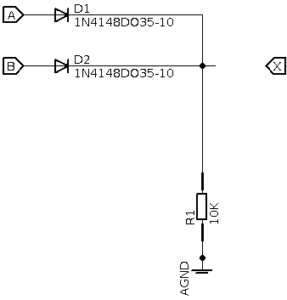
or-gate.
The output of the gate is connected via a tie-down resistor R1 to ground. This ensures that when no input signal is applied to input A or input B the output of the gate X remains low.
When either of the inputs become high the diode will conduct and a current will flow through the resistor to ground. There will be a voltage drop across the diode of approx 0.7V when it’s conducting so the voltage at point X will be Vin-0.7 so for a 5V input the output will be at 4.3volts which is sufficient to be defined as as a ‘high’ in logic terms.
The ‘gate’ in extensible so all you need to do is to add additional diodes to create more inputs.
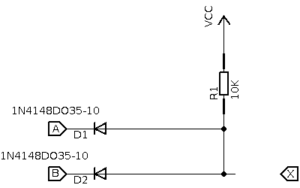
and-gate.
The and gate is a simple modification of the or-gate logic. by connecting the resistor to a positive supply voltage and reverse biasing the diodes the circuit will now work as and and-gate
When both inputs are low points A and B are virtual grounds and the supply voltage is dropped across the resistor so point X is at zero.
Consider when A is high and B is low. D1 is now reversed biased no no current will flow through it, but it will flow through D2 and point X is at zero. The same argument holds when B is now high and A is low.
Now when A and B are both high both diodes are reversed biased and no current will flow through the circuit so the supply voltage will appear at output point X and the output of the circuit is high.
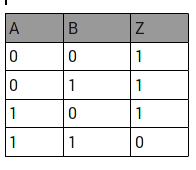
Digital logic ICs come in all types but to my mind the NAND gate is the most flexible device to have in your component box. NAND is a NOT AND gate and can be considered complementary to an AND gate meaning that the truth table is an AND gate in reverse. Why is that? Let’s take a look at the truth table for a common two input NAND gate
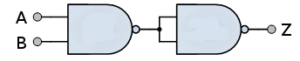
The NAND gate has beautiful flexibility because it can be configured to work as an inverter, AND gate, OR gate quite easily. For example want an AND gate? Then all you need to do is wire the output pin (Z) to both inputs of another NAND gate as shown below:
This reverses the truth table above and you have an an AND gate.
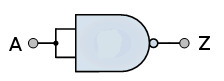
Want an inverter? then just connect both inputs A and B together and the output will be the inverse of the input signal as shown below:
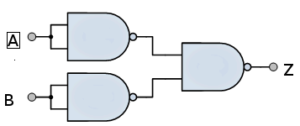
This is really beautiful isn’t it? An OR gate is slightly more complicated and will require 3 NAND gates to accomplish our task.